Cydia Jailbreak Guide for iPhone and iPad
A Cydia jailbreak usually means using a compatible jailbreak tool to install the original Cydia package manager. The important question is whether that tool supports your exact device and installed software. A tool that works on one iPhone may not work on another, even when both display the same iOS version.
This guide helps you check eligibility, compare established tools, understand which package manager you will receive, and choose an appropriate next step.
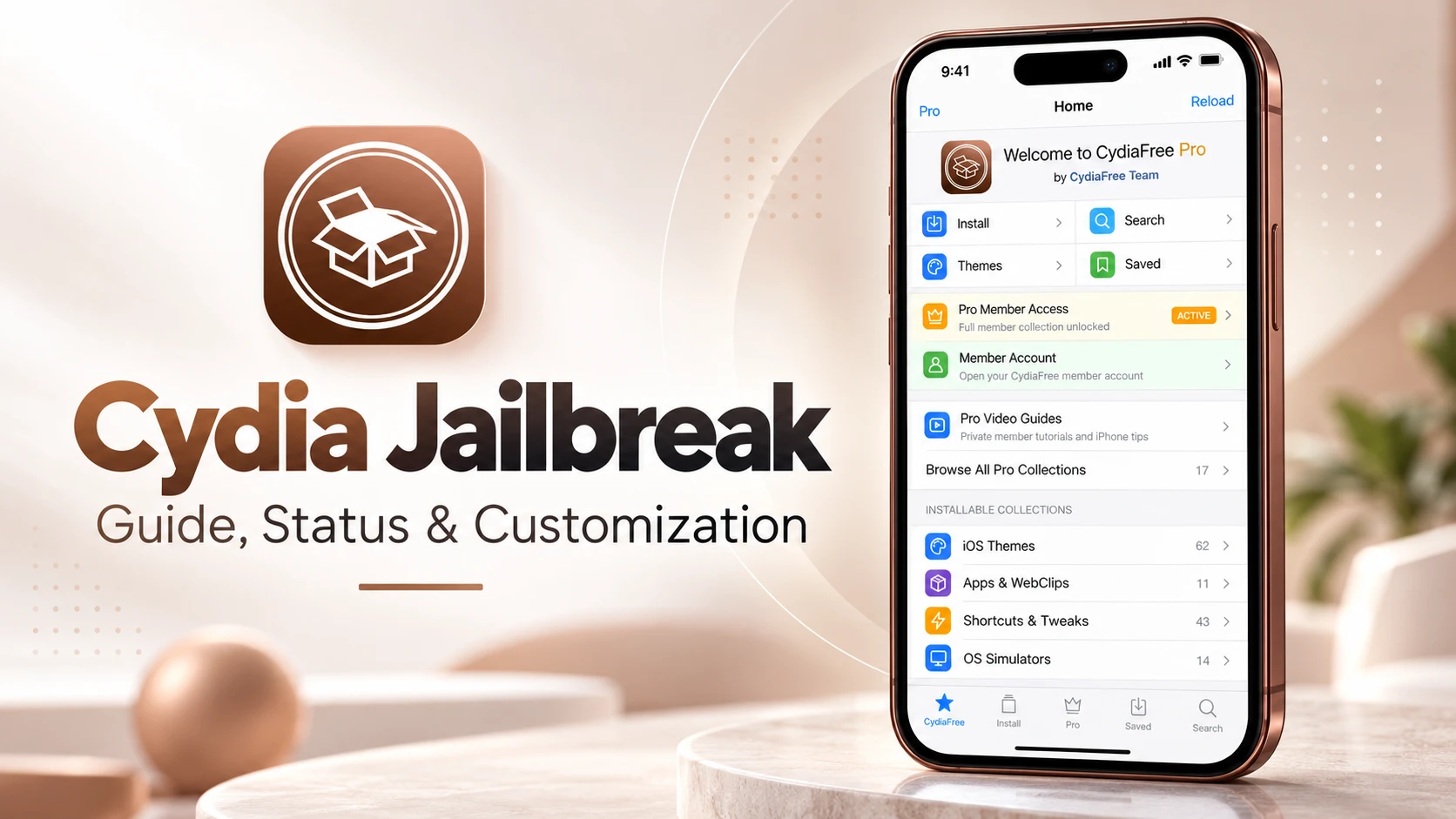
Quick answer: Original Cydia is available through certain compatible legacy jailbreaks, including unc0ver and checkra1n. Other jailbreaks, including Dopamine and palera1n, provide package managers such as Sileo or Zebra. Opening a Cydia-style website or adding its icon to your Home Screen does not establish a jailbreak or install original Cydia.
For the broader download overview, see our Cydia download guide.
What is the difference between Cydia and a jailbreak?
Jailbreaking changes the device's software environment so compatible applications and tweaks can operate beyond ordinary iOS restrictions. A package manager is the application used to browse repositories and install, update, or remove packages in that environment.
Cydia is a package manager, rather than a universal tool that jailbreaks every iPhone. Installing its icon is not enough: the supporting jailbreak environment and required packages must also be present.
This distinction explains why a successful jailbreak may give you Sileo instead of Cydia. Choose a method for its documented compatibility, then use the package manager that method supports.
Background: Cydia's official website and the package-manager explanation in the palera1n-linked documentation.
Check your device before choosing a tool
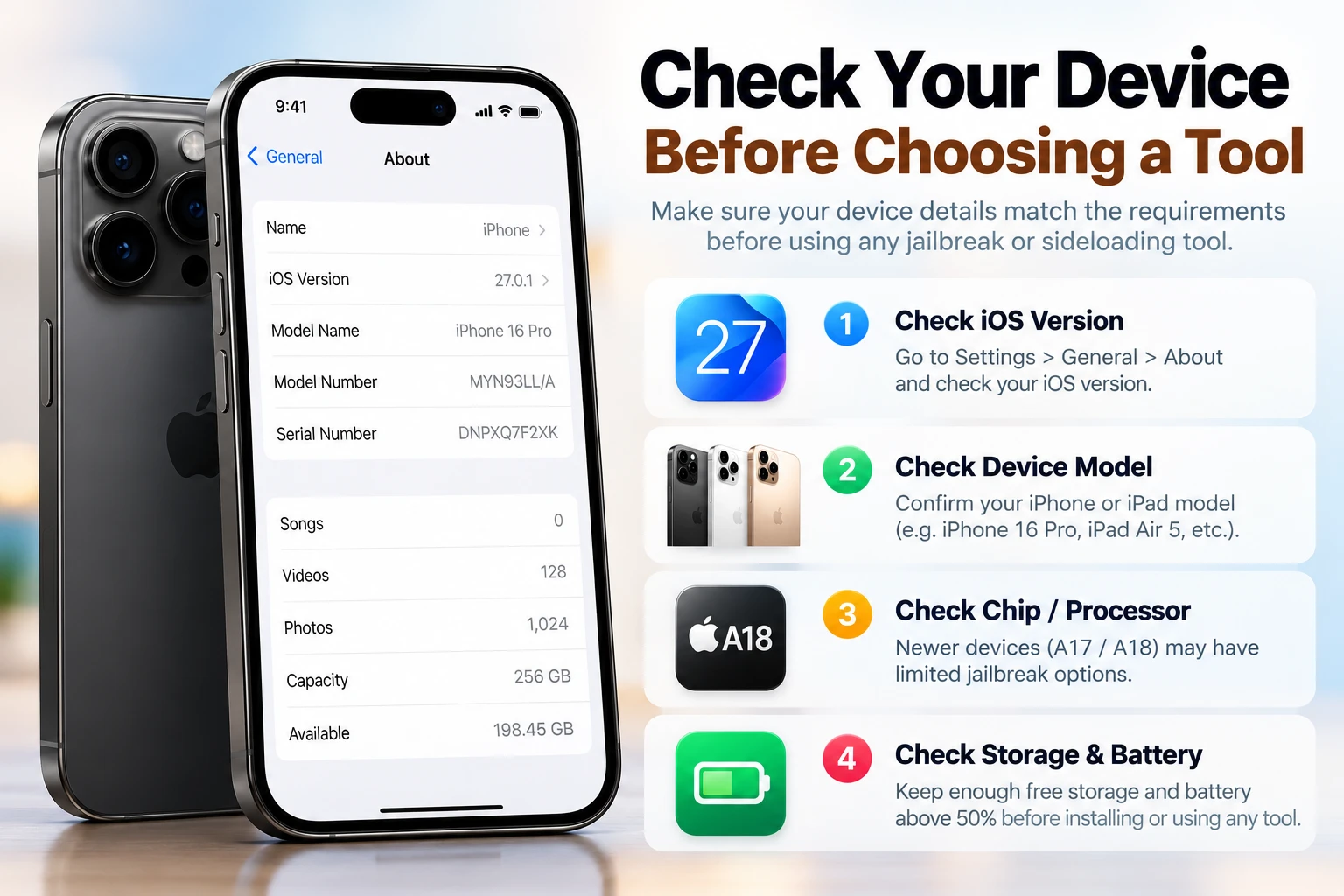
Record these details before downloading anything:
- Device model: Open Settings → General → About and note Model Name. For an iPad, include its generation.
- Exact software version: Record the full iOS or iPadOS version, including the final number. A guide for 26.0.1 does not automatically apply to 26.7.1.
- Chip: Check your model in Apple's technical specifications. Tool documentation may use labels such as A13, A15, or M1.
- Installation requirements: Check whether the method requires a computer, a particular operating system, app signing, or other preparation.
Do not publish your serial number, Apple Account password, or other private identifiers in a support request. A model name, software version, tool version, and relevant error message are usually more useful for describing the problem.
Cydia jailbreak tools and compatibility
The table below summarizes four established projects reviewed for this guide. It is not an exhaustive list of every jailbreak or every supported build. Version ranges describe project coverage; a device must also be able to run that software and satisfy the project's restrictions.
| Tool | Hardware and software scope | Package manager |
|---|---|---|
| unc0ver | Selected device/version combinations within its advertised iOS 11.0–14.8 coverage. The upper limit does not apply to every iPhone or iPad. | Cydia |
| checkra1n | Supported older hardware, including iPhone 5s through iPhone X, on compatible legacy iOS 12–14 releases. Check the release notes for device exceptions. | Cydia |
| Dopamine: A14–A17 and M1–M2 | The project site lists iOS/iPadOS 15.0–17.3.1, subject to the model's software eligibility. | Sileo or Zebra |
| Dopamine: A12/A13 | The repository lists iOS/iPadOS 15.0–18.7.1 and 26.0–26.0.1. These are separate ranges. | Sileo or Zebra |
| Dopamine: A8–A11 | The repository lists compatible iOS/iPadOS versions within 15.0–18.7.1. Not every older model can run every version in that range. | Sileo or Zebra |
| palera1n | Supported A8–A11 devices on compatible iOS/iPadOS 15 or later. Check the project's actual device list and release notes. | Sileo or Zebra |
Official sources: unc0ver, checkra1n, Dopamine's repository, Dopamine's website, and palera1n.
What about iOS 26.7.1 and iOS 27.0.1?
None of the four projects reviewed above documents support for these releases on current supported iPhones and iPads. This is a finding from those projects' published documentation, not a claim that every experimental project has been assessed.
A published vulnerability, an exploit demonstration, and a usable public jailbreak are different things. Look for a released tool with explicit device and firmware support before treating a new announcement as an installation option.
For release-specific background, see our iOS 26 jailbreak status guide and iOS 27 jailbreak status guide.
Two examples of checking compatibility
iPhone 11 on iOS 26.0.1: Apple identifies the iPhone 11 chip as A13. That hardware and firmware combination falls within Dopamine's published A12/A13 range. This points you toward checking Dopamine's installation documentation; it does not mean original Cydia will be installed.
iPhone 13 on iOS 17.7.2: Apple identifies its chip as A15. This is outside Dopamine's published upper limit for the A14–A17 group. An A13 compatibility result cannot be applied to this phone.
These examples are interpretations of the documented ranges, not hands-on test results. Hardware references: iPhone 11 specifications and iPhone 13 specifications.
How to install Cydia on an eligible device
Start by deciding whether your goal requires original Cydia or simply a supported package manager for compatible tweaks.
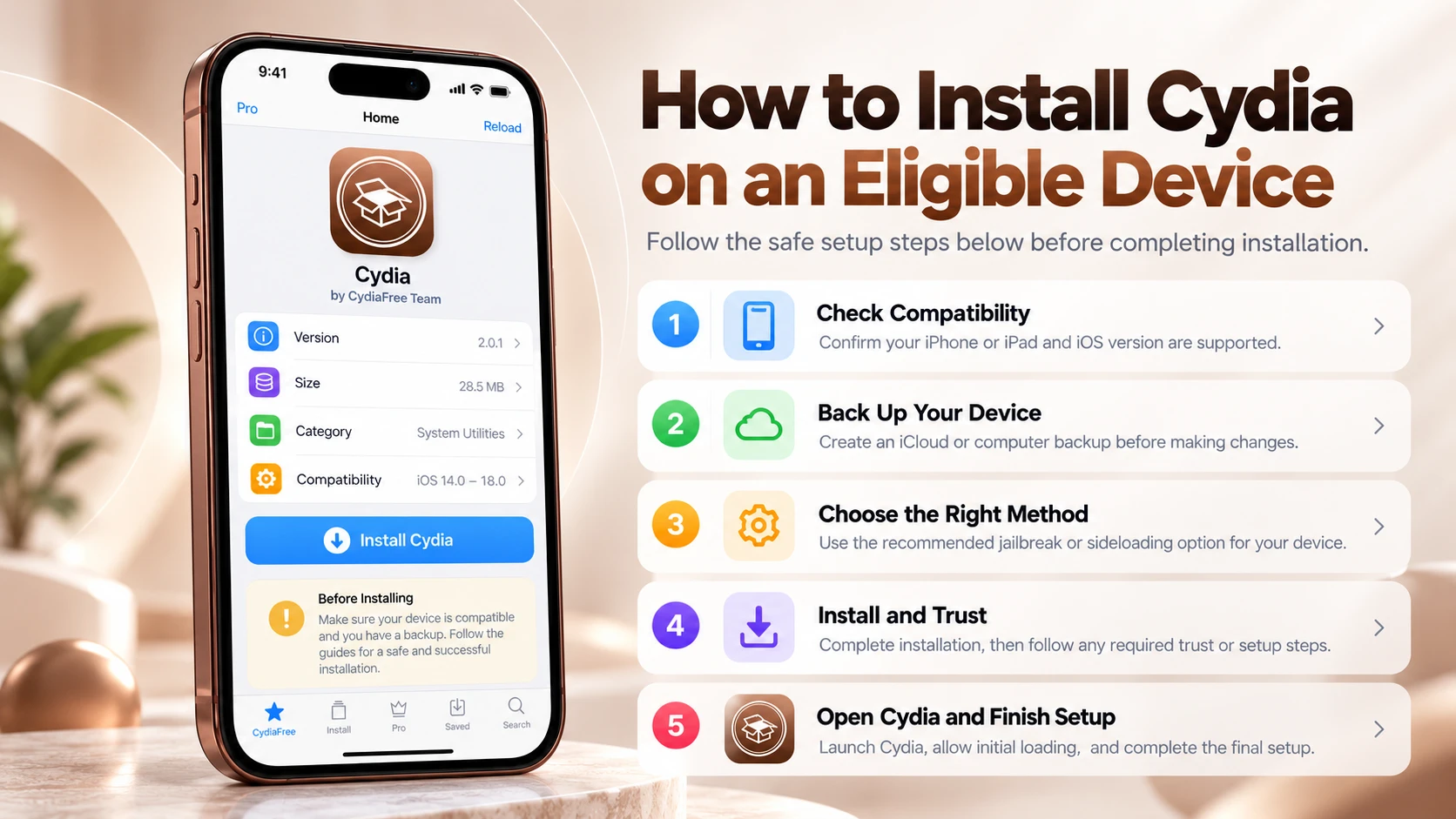
1. Back up before making changes
Create a recent backup and confirm that it completed. Apple's iCloud backup instructions explain how to check the backup time. Save important files separately if losing them would cause a problem.
Read the selected method's removal and recovery instructions before starting. Having a backup protects your data; it does not guarantee that a restore will preserve jailbreak eligibility.
2. Confirm the exact method
If your device supports a Cydia-based legacy method, read the relevant unc0ver or checkra1n documentation. Do not assume unc0ver's “up to 14.8” headline includes every device or intermediate version.
If your eligible method provides Sileo or Zebra, follow that method's instructions and use its supported packages. A different package manager is not evidence that the jailbreak failed.
3. Use the project's download and instructions
Get the tool from the official project site or the repository it links to. Follow its instructions for your device and computer platform. A single installation sequence cannot safely cover all methods in the table.
checkra1n's published desktop release supports macOS and Linux. It is not an iPhone Safari download. Its release notes also identify restrictions for A11 devices on iOS 14.
For palera1n, read the installation caveats before proceeding. On A11 devices, the documented passcode and related security-function restrictions are substantial; some iOS 16 preparations involve erasing the device. Do not start that process casually on your everyday phone.
4. Check packages before installing tweaks
Once the supported package manager is available, allow its initial setup to finish. Check each package's supported firmware, architecture, dependencies, and developer source before installing it.
Keep track of what you install. Changing many packages at once makes it harder to identify the cause if the device begins crashing or behaving differently.
Rootless jailbreaks and older Cydia tweaks
“Rootless” describes the jailbreak's filesystem arrangement. It does not mean an ordinary website, nor does it make the device immune to security problems.
Dopamine is a rootless jailbreak. Its developer explains that packages may need changes to support this environment. An older tweak built for a traditional rootful setup may therefore be incompatible, even if you recognize its name.
Before installing a tweak, check both the package's firmware support and whether its build supports your jailbreak environment. Changing Cydia to Sileo, or Sileo to Zebra, does not fix incompatible package code. Source: Dopamine's rootless explanation.
Can you get a Cydia jailbreak without a computer?
There are two separate questions: how the jailbreak application is installed initially, and how the jailbreak is reactivated after a reboot.
An app-based semi-untethered method may let you reactivate the jailbreak on the device once its application is installed and launchable. That does not prove the initial setup works without a computer. App-signing requirements can also change whether the application will open.
With a semi-tethered method such as checkra1n, rebooting normally leaves the jailbreak inactive; the documented computer procedure is needed to reactivate it. palera1n users should likewise check the reboot procedure for their selected mode.
For an explanation of these terms, see the jailbreak-type documentation.
Avoid treating “no PC,” “online,” or “one tap” as proof of compatibility. The method still needs documented support for your hardware and software.
Options when your device is not supported
First identify what you actually want to change. Wallpapers, widgets, Home Screen layouts, and some Shortcuts-based customization can be explored using normal iOS features. These options do not replace system-level jailbreak tweaks.
Sideload compatible applications
Sideloading installs supported IPA applications using an appropriate installation and signing method. Sideloadly is one option for macOS and Windows. Signing a jailbreak application's IPA is only an installation step; it does not make an unsupported device jailbreakable.
Sideloadly explains that apps signed with a free account normally need re-signing after seven days. For installation, launch, or refresh errors, use our Sideloadly troubleshooting guide. Check the official Sideloadly FAQ for its current requirements.
Understand TrollStore's limits
TrollStore uses a CoreTrust-related bug to install applications on specific supported firmware. It is not a general-purpose jailbreak or a universal Cydia installer. Its documentation lists limits that include the inability to inject a tweak into a system process through TrollStore alone.
The fact that an application stays installed does not prove that a full jailbreak is active. Source: TrollStore's developer documentation.
Explore the CydiaFree web app
The CydiaFree online app provides a browser-based Cydia-style experience and access to resources. It does not perform a system jailbreak, install original Cydia, or give a website permission to install native jailbreak tweaks.
If you want to explore that interface, open the CydiaFree online app. Any separate native-app installation still depends on that application's own compatibility and installation requirements.
Risks to consider before jailbreaking
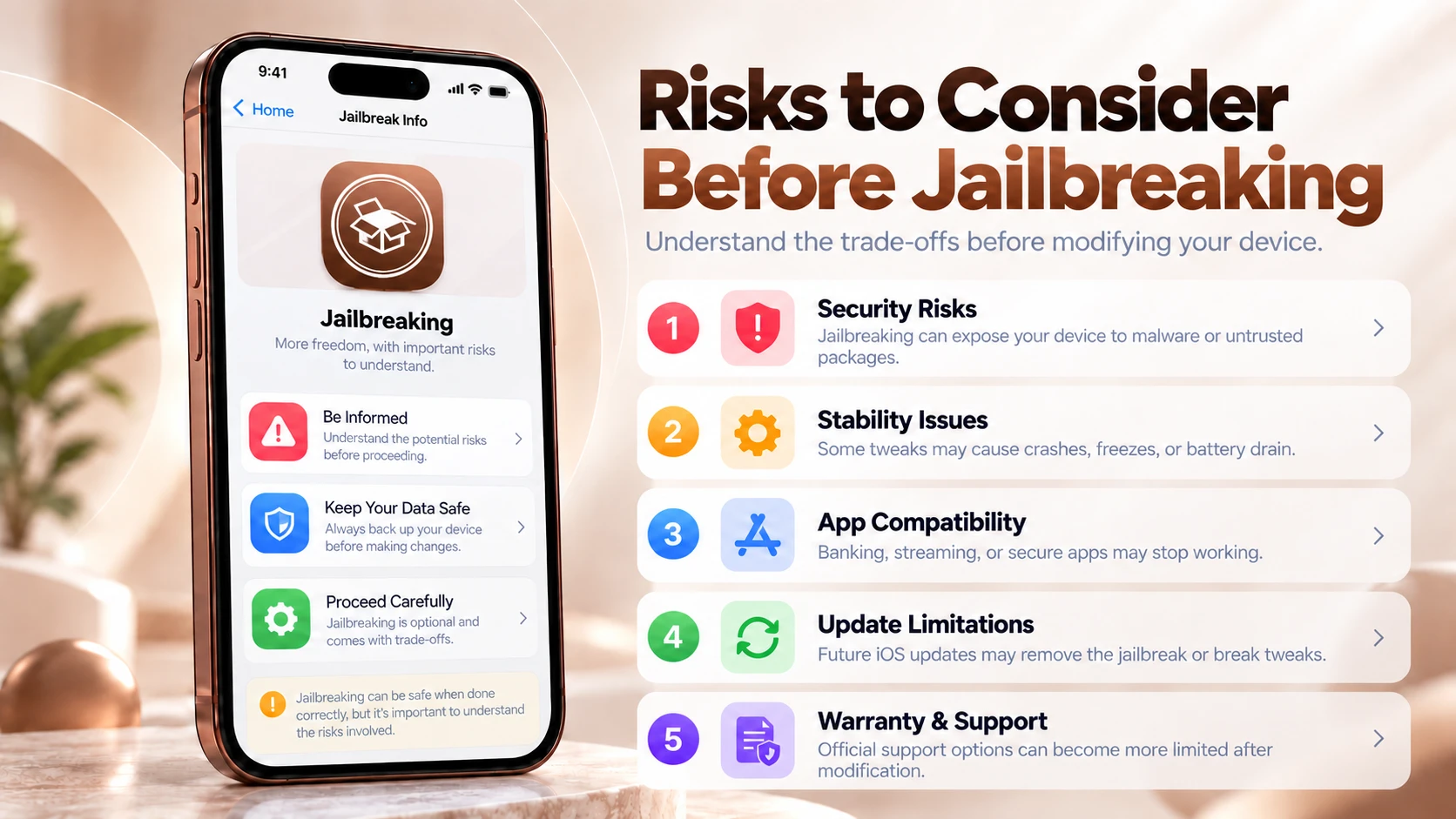
Apple warns that unauthorized iOS modifications can weaken security, cause instability, shorten battery life, disrupt services, and interfere with updates. Apple also says it may deny service for a device with unauthorized software installed. Read Apple's explanation before deciding.
Consider whether the changes you want justify those trade-offs on a device you depend on every day. “Rootless” is not a promise that essential applications or services will continue working.
When evaluating a download page, ask:
- Does it identify the developer and link to an authentic project?
- Does it specify the exact supported hardware and firmware?
- Does it explain what will actually be installed?
- Does its description distinguish a web app, sideloading, and a jailbreak?
A simulated progress bar, a recognizable icon, or a demand to complete unrelated surveys is not evidence of a working jailbreak. Likewise, paying for guides or membership does not unlock unsupported firmware.
If Cydia or another package manager will not open
The problem started after restarting
Check whether the jailbreak environment is active. For methods that need reactivation after a reboot, follow that tool's own procedure. Reinstalling random Cydia downloads is not the first troubleshooting step.
The jailbreak application itself will not launch
If the application was sideloaded, investigate its signing or refresh status. Use the Sideloadly errors guide if Sideloadly was your installation method.
A problem appeared after installing a tweak
Note the last package changed and consult the method's safe-mode or recovery documentation. checkra1n's FAQ describes how incompatible tweaks can cause problems and provides a method-specific way to investigate them. Do not apply another jailbreak's recovery commands without checking compatibility.
Repository refresh or dependencies fail
Record the full error and check the repository or package developer's support information. Distinguish an unavailable repository from an unsupported package or an inactive jailbreak. Installing an unknown replacement package to silence an error can create additional problems.
Frequently asked questions
Is Cydia itself a jailbreak?
No. Cydia is a package manager used within a compatible jailbreak environment. The jailbreak tool establishes that environment.
Why did my jailbreak install Sileo instead of Cydia?
The package manager depends on the method. Dopamine and palera1n document Sileo and Zebra options. Use the manager supported by your chosen setup.
Can I install Cydia by downloading a Cydia IPA?
An IPA alone does not establish a compatible jailbreak environment. Check what the application really does and whether the required method supports your device.
Will updating iOS keep my jailbreak working?
Do not assume so. An update can move the device outside a method's supported range. Check the project documentation before changing firmware, and weigh the benefits of Apple's security updates against keeping a modified setup.
Does sideloading mean my phone is jailbroken?
No. A signed app installation and an active jailbreak are separate. The application must actually perform a supported jailbreak for the environment to change.
Can CydiaFree Pro make an unsupported device jailbreakable?
No. Membership cannot change a chip's capabilities or provide a missing compatible exploit. Evaluate membership by the resources and features included, separately from jailbreak availability.