Sideloadly Errors: Fix Installation and App Refresh Problems
An iPhone that never appears in Sideloadly needs a different fix from an app that installs but will not open. Start with the point where the process stops: connecting your device, signing the IPA, installing it, launching it or refreshing an existing app.
This guide covers Sideloadly on a Windows PC or Mac with an iPhone or iPad. For the initial download and setup, use our basic Sideloadly guide.
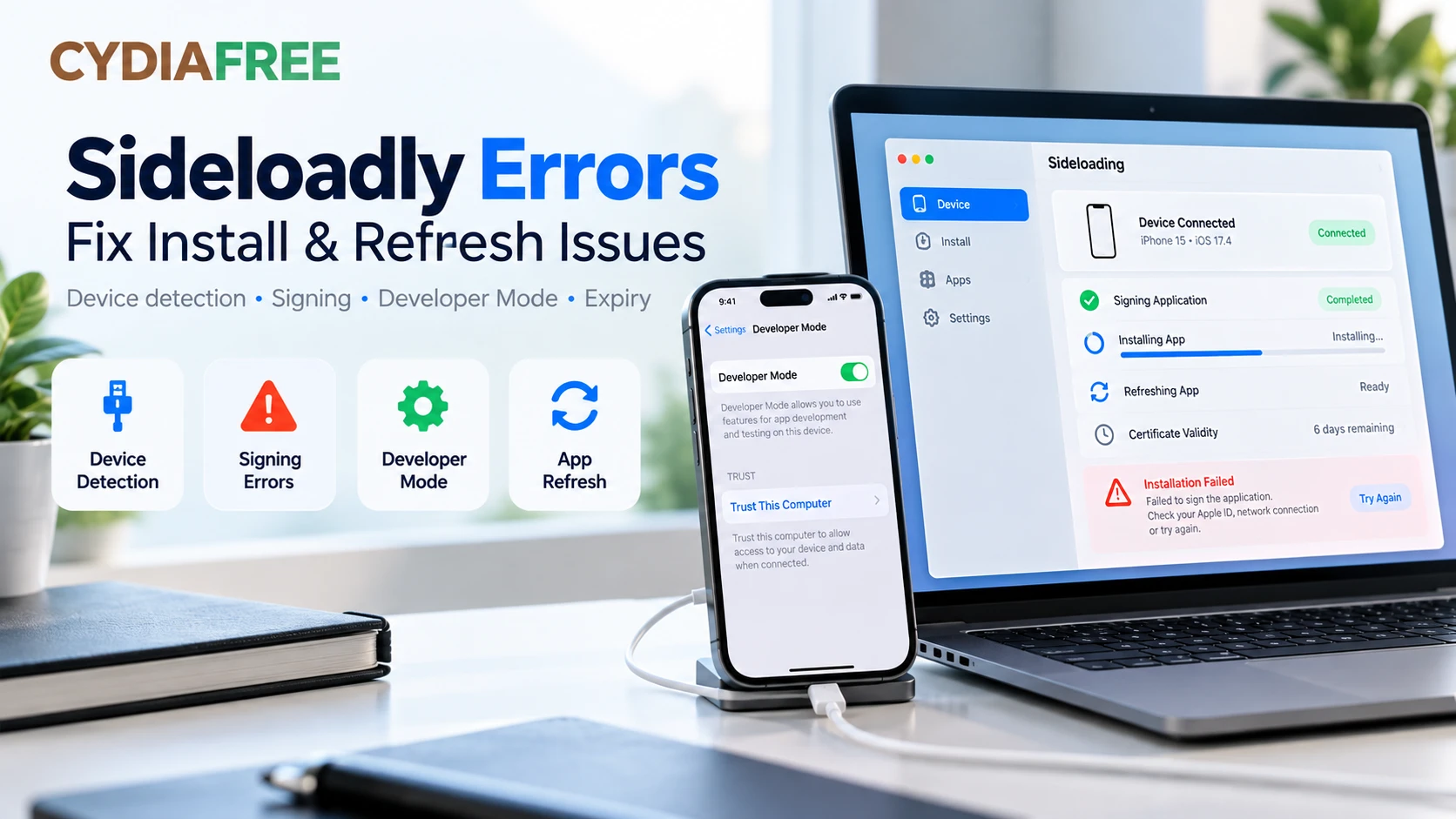
Important distinction: Sideloadly signs and installs IPA files; it does not jailbreak your device. A jailbreak changes the device's software restrictions. The CydiaFree browser app is a separate web experience: opening it cannot sign an IPA, repair Sideloadly or renew an expired native app.
Find the problem you are seeing
Use the symptom closest to what happens on your device. Each link jumps directly to the relevant troubleshooting section.
| What happens | Start here |
|---|---|
| Your iPhone or iPad is missing from the device list | Device not detected |
| Sideloadly stops while signing, uploading or installing | Signing and installation errors |
| The app installs but asks for Developer Mode or developer trust | Developer Mode and trust |
| Apple rejects your login or reports an app limit | Apple ID and app limits |
| The log mentions anisette or an authentication server error | Anisette issues |
| An app worked for several days and now will not open | App expiry |
| Manual installation works but scheduled refresh does not | Automatic refresh problems |
Before changing settings
Copy the error and the few log lines immediately before it. Record your Sideloadly version, computer operating system, iPhone or iPad model, and exact iOS or iPadOS version. Note whether you used USB or Wi-Fi and whether the problem affects one IPA or several.
Keep the existing app installed if it contains data you need. Export documents or confirm the app's own backup has completed before trying anything that removes it. A screenshot of the app is not a backup of its contents.
Check the official Sideloadly download page for updates. It currently lists Windows 7 or later and macOS 10.12 or later, with iOS support described as 7 through 26+. Those are the project's stated requirements, not proof that every IPA or future OS release works. The IPA must separately support your device and OS. This guide does not claim hands-on testing of every combination.
1. Sideloadly does not detect your iPhone or iPad
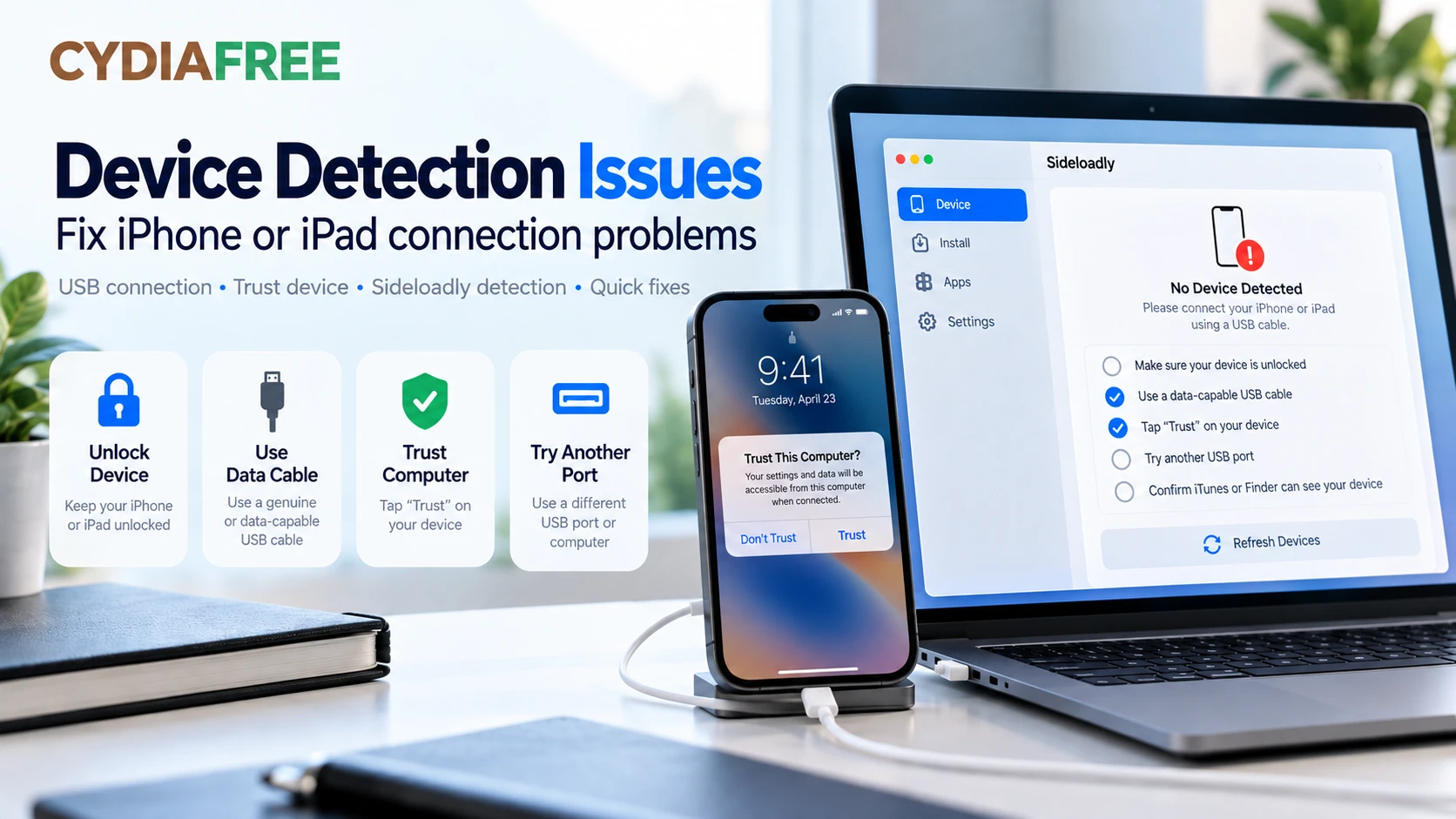
Symptoms: The device selector is empty, your device disappears during a connection attempt, or Sideloadly cannot start transferring the app.
Likely causes: A cable without data support, an untrusted computer, a USB connection problem or missing desktop components.
Check the connection first
- Unlock the iPhone or iPad and connect it directly to the computer with a data-capable cable.
- Try another cable and USB port if it is not recognized. A charging symbol alone does not prove the data connection works.
- On a Mac, approve the accessory connection if macOS asks, then look for the device in Finder. On Windows, check whether Apple's device-management software recognizes it.
- Complete the computer-trust prompt on the device. Trust only a computer you control.
- Disconnect and reconnect, then restart the device and computer if recognition still fails.
Apple's device-recognition guide covers these connection checks. If Apple's own software cannot see the device, resolve that before changing IPA signing options.
Check Sideloadly's Windows requirements
Sideloadly specifically requests the web installers for iTunes and iCloud linked from its official site, rather than the Microsoft Store editions. Follow those requirements when repairing its Windows setup; Apple's general Apple Devices instructions are not a replacement for Sideloadly's dependencies.
For LOCKDOWN_E_INVALID_HOST_ID, check computer trust. For NP_E_CONN_FAILED or AFC_E_MUX_ERROR, check Windows dependencies. See the official FAQ.
If the trust prompt never appears, Apple's computer-trust instructions include Settings → General → Transfer or Reset iPhone/iPad → Reset → Reset Location & Privacy. This resets privacy permissions and remembered computer trust, so expect permission prompts again. Use it after reconnecting and restarting have failed; do not choose the erase-device option.
When to get help: If Apple's software sees the device but Sideloadly does not, send that distinction to Sideloadly support. If neither sees it after cable and port checks, use Apple support first.
2. Signing or installation fails
Symptoms: Sideloadly identifies the device but stops before completing installation. The log may mention a signature, provisioning profile, app identifier, architecture or storage.
Likely causes: The IPA is incompatible or incomplete, the signing information does not match, a required capability is unavailable, or the device cannot accept the installation.
Read the specific error near the end of the log. A general failure heading is not enough to choose a fix.
The IPA does not support your device
An architecture mismatch means the app lacks code suitable for the target device. A device-family or minimum-OS mismatch is another compatibility problem. These are separate from Apple ID authentication.
Get a compatible build from the app's developer. Merely lowering a version field or removing a device restriction cannot supply missing code, hardware features or operating-system APIs. Avoid treating an advanced compatibility override as a guaranteed fix.
Apple's installation troubleshooting reference explains these failure categories. It is archived developer documentation; use it to understand the error, not as a current Sideloadly menu guide.
The log mentions signing or a provisioning profile
iOS validates executable code and its signature. Successful transfer to the phone does not establish that the app can pass those checks. See Apple's explanation of app code signing.
For diagnosis, return to the developer's original IPA and remove optional injection or customization settings you added for this attempt. Keep a record of those changes so you can compare the result. Check that both devices show the correct date and time, then retry once with your intended signing account.
If the log identifies an entitlement, keep its name in your support report. Entitlements describe capabilities granted to the app; changing passwords is not a general remedy for a capability or profile mismatch. The app's developer may need to supply a suitable build. Apple documents entitlement mismatches here.
An update conflicts with the installed app
An application-identifier mismatch can stop an update from replacing an existing installation. Compare the signing account and bundle identifier with your original installation. Do not experiment with a new identifier as your first repair step: that can turn the attempt into a separate app rather than an update.
If replacement still fails, ask for help before uninstalling an app that contains unsaved data.
Storage or installation restrictions stop the process
Check free space on both the computer and device. Sideloadly's FAQ notes that a storage error can refer to the computer's disk. On the iPhone or iPad, inspect Settings → General → iPhone Storage/iPad Storage. Review removable downloads first; deleting the affected app also removes its local data. Apple explains the device-storage controls here.
If the error indicates installation is prohibited, check whether Screen Time or an organization controls app installation. Ask the parent or administrator responsible for those settings. Do not remove management profiles to troubleshoot a work or school device.
When to get help: Contact the IPA developer when one particular build fails compatibility checks. Use Sideloadly support when multiple appropriate IPAs fail at the same signing or installation stage. Include the detailed error, not only a screenshot of the final failure heading.
3. The app needs Developer Mode or developer trust
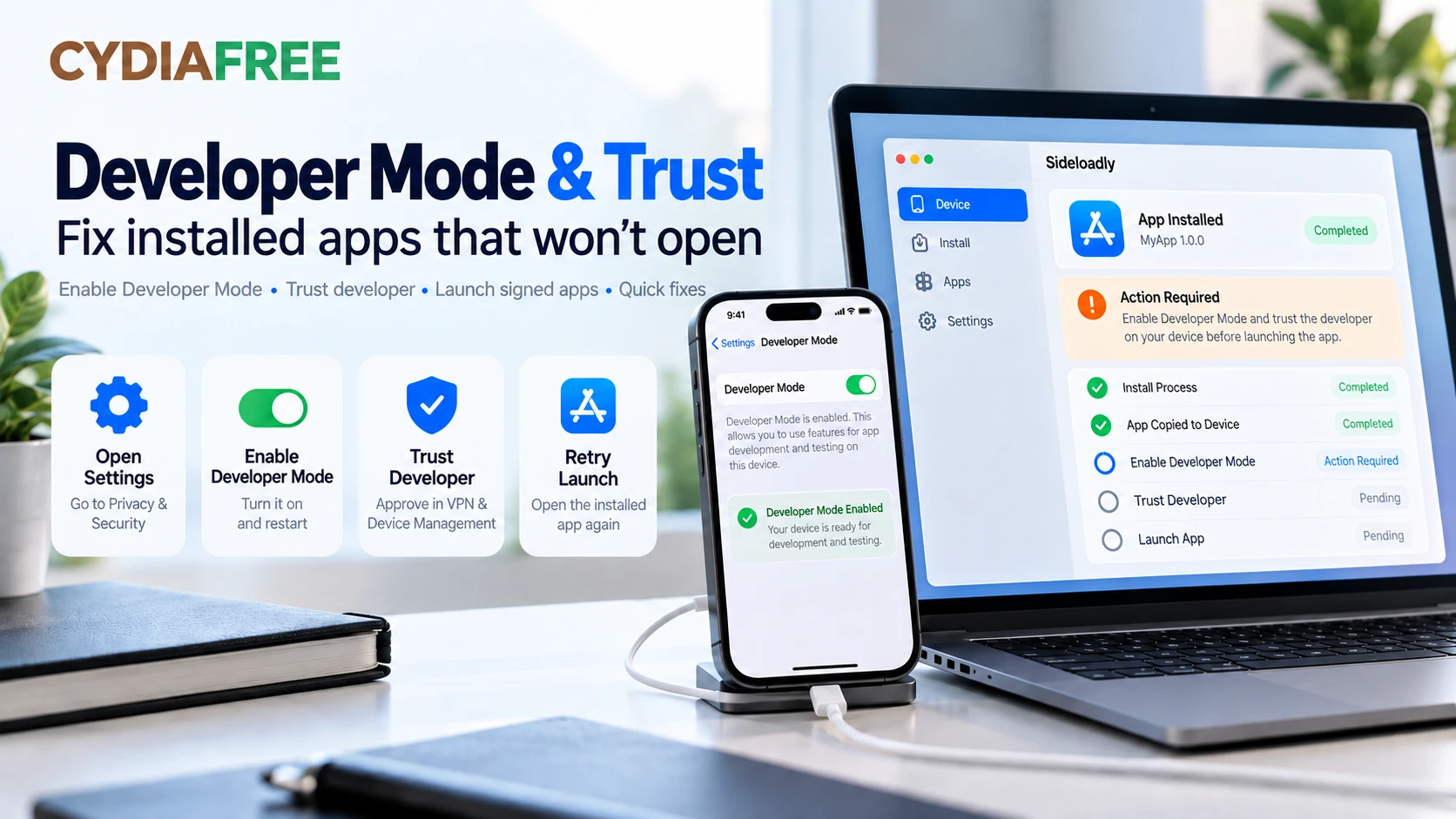
Symptoms: Installation completes, but opening the app triggers a Developer Mode or trust message.
Likely cause: Installation finished, but the device has not granted the permission needed to run this development-signed app. Developer Mode and developer trust are separate checks.
Enable Developer Mode when requested
For Sideloadly-installed development apps on iOS/iPadOS 16 or later:
- Open Settings → Privacy & Security → Developer Mode.
- Enable the switch and read Apple's warning.
- Restart when prompted.
- After restarting, unlock the device, confirm that you want Developer Mode enabled and enter your passcode when requested.
Apple explains that Developer Mode reduces device security protections for development use. Enable it deliberately for software you trust; it is not a jailbreak.
If the setting is missing, first complete device detection and the relevant pairing/install attempt. Apple's documentation ties the setting's visibility to development pairing. A missing switch is not evidence that you need an unrelated configuration profile or a paid unlocking service.
See Apple's Developer Mode instructions.
Approve your own developer entry
For an untrusted-developer message, open Settings → General → VPN & Device Management, select the account used for the installation and approve its trust prompt. Only approve an entry you recognize. The Sideloadly FAQ documents this step.
When to get help: If the warning remains after approval and restart, report the exact message. A verification failure or immediate crash may require a different diagnosis from Developer Mode.
4. Apple ID login fails or an app limit is reached
Symptoms: Authentication is rejected, a verification prompt repeats, or installation stops because the account or device has reached a limit. Apple now calls Apple ID an Apple Account; Sideloadly may still use the older label.
Separate account access from a Sideloadly login problem
Check that you can sign in directly at Apple's account website. If Apple says the account is locked, inactive or disabled, follow Apple's recovery instructions. Repeated guesses can make account-access problems worse.
If Apple sign-in succeeds, return to the current Sideloadly release and complete the verification prompt it presents. Successful website login is a diagnostic clue, not proof that Sideloadly's authentication has succeeded.
Do not disable two-factor authentication to troubleshoot. Do not assume an app-specific password is interchangeable with your normal sign-in credentials: follow the instructions for the actual Sideloadly version and account configuration you are using.
Installed apps and App IDs are different limits
Apple documents these free Personal Team limits:
| Limit | What it means |
|---|---|
| Up to 3 installed apps per device | A device can run out of free development-app slots. |
| Up to 10 registered App IDs, expiring after 7 days | Registering more app identities can hit a separate account limit. |
| Provisioning profiles expire after 7 days | Installed apps need renewed provisioning. |
If the installed-app limit is the problem, back up and remove a free development-signed app you no longer need. Removing a normal App Store app is not the relevant fix.
If the App ID allowance is exhausted, wait for existing registrations to expire. Do not assume deleting an app immediately clears that allowance. Avoid repeatedly changing bundle identifiers while diagnosing the issue.
These are signing-account limits. CydiaFree Pro membership does not change them. See Apple's developer-account documentation.
When to get help: Use Apple support for account access. Use Sideloadly support if direct Apple sign-in works but Sideloadly authentication keeps failing, or the reported limit seems inconsistent with the account you selected.
5. Anisette authentication fails
Symptoms: The log mentions anisette, authentication cannot complete, or a server error appears before signing.
Likely causes: Authentication data could not be obtained or accepted, a remote service failed, or an older Sideloadly build is using an outdated login method. The exact log determines which explanation fits.
Start by comparing your installed version with the official changelog. Its v0.60.0 notes describe login and anisette fixes, support for Advanced Data Protection and changes to the location of some settings. Earlier v0.50.0 notes say a Mail plug-in is no longer required. Old tutorials that always require a Mail plug-in are therefore not a universal setup guide.
For a remote anisette HTTP 500 failure, the FAQ recommends waiting or using local anisette. If your installed version offers local anisette, follow its setup prompts; the setting's location may differ from older screenshots.
Suggested diagnostic sequence
- Update Sideloadly from its official site and reopen it.
- Record whether the failure is local or remote, if the log specifies this.
- Check ordinary internet access and whether a connection filter reports blocking the request. Avoid disabling the entire firewall or antivirus suite.
- Retry once after addressing the identified issue. If a remote service is failing, pause instead of cycling through passwords and accounts.
Keep Advanced Data Protection enabled; use the updated software before considering old advice about disabling account protections. Do not add an unknown anisette server supplied by an unrelated download page.
When to get help: Use the official FAQ and its support links if the same error persists on the current release. Include the anisette mode, operating system and sanitized error lines.
6. A previously working app has expired
Symptoms: An app opened successfully after installation but stops opening several days later, even though its icon remains.
Likely cause: Its signing validity has expired. This is a useful first check for a free-account installation; it is not proof that every launch failure is an expiry issue.
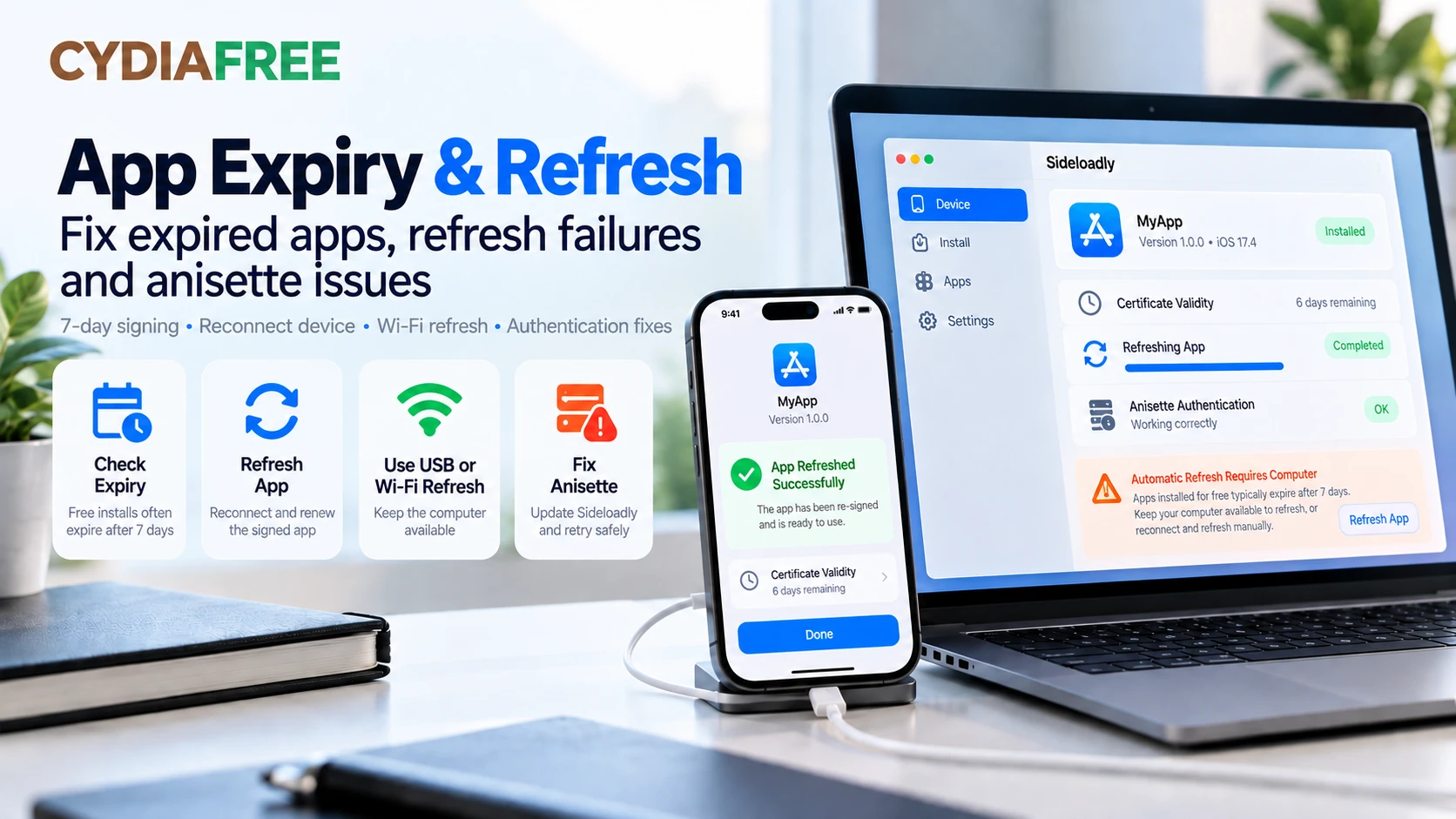
Sideloadly describes a seven-day validity period for free-account signing and up to one year for a paid Apple Developer account. A paid developer account is separate from CydiaFree Pro or a Sideloadly supporter subscription.
Reconnect the device and refresh the app. If reinstalling over it, use the same signing Apple ID and bundle identifier as before. Back up accessible data first; do not delete the existing app simply because it has expired.
After a reported successful refresh, launch it on the device. If it still fails, record whether you see a trust message, a verification error or an immediate crash. That observation decides the next troubleshooting step.
When to get help: Ask Sideloadly support about a refresh that cannot complete. If refreshing succeeds but one app crashes, contact its developer with the build and device details as well.
7. Automatic refresh does not happen
Symptoms: Manual installation works, but the app later expires, or scheduled refresh fails unless you reconnect by cable.
Likely causes: The app was not enrolled for automatic refresh, the background daemon is not running, or the computer cannot reach the device. Authentication errors can also interrupt a scheduled attempt.
Sideloadly's automatic refresh uses a background daemon on the computer. Wi-Fi refresh still needs that computer; it is not an iPhone-only renewal service. See the official automatic-refresh overview.
Check the computer and the app's refresh status
Confirm that automatic refresh is enabled for this app and that the daemon is running. Keep the computer awake and available during a troubleshooting attempt. Look for a completed refresh in its status or log rather than assuming that enabling the option guarantees renewal.
Connect by USB and try a manual refresh. Treat the result as a diagnostic split: failure over USB points back to the signing/install error; success over USB makes wireless discovery or background operation the next area to investigate.
Repair wireless discovery
Use a cable for the initial setup. On Mac, select the device in Finder → General, enable Show this iPhone/iPad when on Wi-Fi, and apply the change. The Mac and device must be on the same Wi-Fi network. Apple documents this Finder setup.
For Windows, follow the iTunes Wi-Fi-sync setup in the Sideloadly FAQ. During diagnosis, keep the device unlocked and visible, then check whether it remains available after disconnecting USB.
Our practical recommendation is to test on a trusted home network before troubleshooting a guest or managed network. If wireless discovery remains unreliable, use USB to complete the refresh before returning to network diagnosis.
The changelog records improvements to Wi-Fi reconnection and refresh, as well as a daemon startup control. Check those settings and update the software before relying on an older workaround.
When to get help: Report whether manual USB refresh works, whether Wi-Fi detection works and whether the daemon attempted a refresh. Those three observations are more useful than simply reporting that automatic refresh is broken.
Still stuck? Use Sideloadly's official support route
Start at the Sideloadly FAQ and support page. It links to r/Sideloadly for community help and Patreon support for eligible supporters.
A useful report includes:
- Sideloadly version and computer OS version.
- Device model and exact iOS/iPadOS version.
- Free or paid Apple Developer account; do not include the account password.
- USB or Wi-Fi connection and the stage that fails.
- Whether the problem affects one IPA or several.
- The exact error with a small, relevant log excerpt.
- What you tried and what changed after each attempt.
Review the excerpt before posting. Remove passwords, verification codes, account email addresses, device identifiers and other personal details. Never provide a remote helper with your Apple Account password.