How to Install IPA Files on iPhone Without Jailbreak
Have an IPA file and want to install it on your iPhone or iPad? The next step depends on your device, the app and whether you can use a computer.
This guide walks you through Sideloadly, AltStore Classic and SideStore, then explains developer trust, app expiry and the limits of computer-free installation.
What is an IPA file?
An IPA is an iPhone or iPad app archive. A developer may provide one for testing or installation through a supported distribution method.
Moving the file to your device is only the download step. On a normal iPhone, app installation also involves code signing and provisioning: checks that determine whether that build can run on that device.
An IPA is different from a jailbreak DEB package or a Home Screen link to a website. Installing an IPA does not automatically install Cydia, apply system tweaks or jailbreak your phone.
If you are looking for original Cydia rather than an individual app, start with our Cydia jailbreak compatibility guide.
Before you install an IPA
Have these details ready:
- The developer’s IPA file. Check the app’s own website or verified project for the intended download and installation instructions.
- Your exact device and software version. Find them in Settings → General → About.
- A suitable signing account. The methods below use an Apple Account, also called an Apple ID.
- Computer access where required. Use a data-capable cable for initial pairing.
- A backup of important app data. This matters when replacing an existing installation.
Check whether the developer supports personal signing. An app can require capabilities or services that your chosen method cannot provide. A successful installation is not a guarantee that every feature will work.
If the developer offers an App Store version or TestFlight invitation, that may be the simpler route for that particular app.
Choose your installation method
Scroll the table sideways on a small screen.
| Method | Computer requirement | Ongoing requirements | Useful when |
|---|---|---|---|
| Sideloadly | Windows PC or Mac for signing and installation | Refresh signing; automatic refresh still uses the computer | You have an IPA ready to install |
| AltStore Classic | AltServer for standard setup and installation/refresh | Computer connection through Wi-Fi or USB; free-account limits | You want to manage several compatible apps |
| SideStore | Computer for initial setup | Wi-Fi, its required VPN and signing refreshes | You want routine installation and refresh on the device |
| TrollStore | Depends on the documented installation route | Specific supported firmware and persistence setup | Your device already meets its exact requirements |
For your first installation with a computer available, the Sideloadly walkthrough below provides a direct starting point. Choose SideStore if on-device refreshing matters enough to maintain its additional setup.
For a broader comparison of package managers, web resources and installers, see Cydia alternatives.
Install an IPA using Sideloadly on Windows or Mac
Sideloadly signs and installs compatible IPA files using your Apple Account.
- Download the current desktop application from Sideloadly’s official website.
- Complete its computer setup. On Windows, follow its links for the required Apple iTunes and iCloud components.
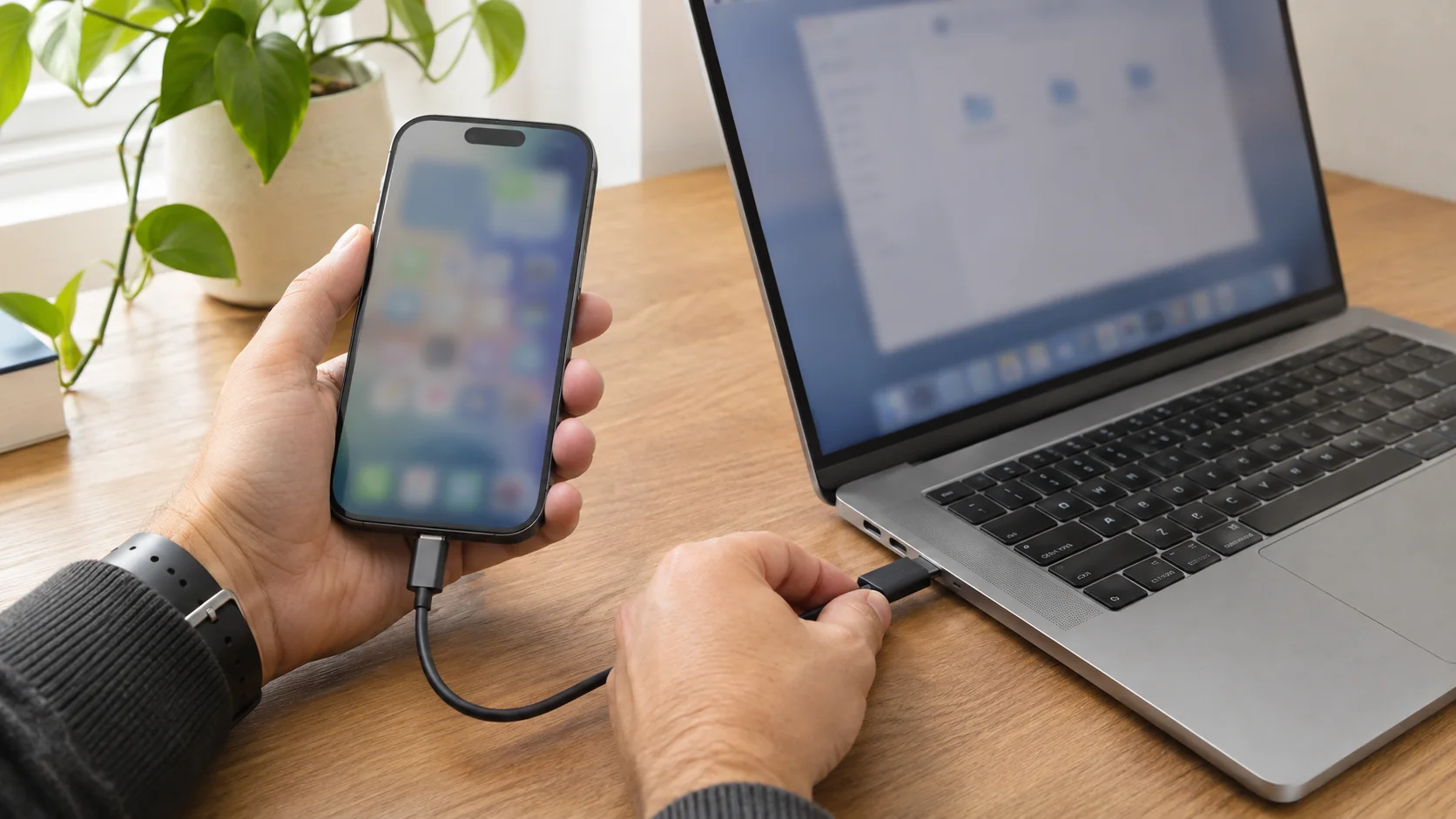
- Connect your unlocked iPhone or iPad with a data cable. Approve the computer-trust prompt if it is your computer.
- Open Sideloadly and select the intended iPhone or iPad. On Apple Silicon Macs, check that you have not selected the Mac itself.
- Load the developer’s IPA file and enter the Apple Account you intend to use for signing.
- Select Start and complete the tool’s authentication prompts. Keep the device connected until installation finishes.
- Open the installed app. Complete the developer-trust and Developer Mode steps below if prompted.
Use the original IPA without optional tweak injection for the first attempt. That gives you a clearer starting point if the app fails.
Our Sideloadly setup guide covers the desktop workflow. If it stops with an error, use the troubleshooting section later in this guide.
Install an IPA using AltStore Classic
AltStore Classic runs on your device and works with AltServer on a computer. Use Classic for this workflow; AltStore PAL is a different distribution product.
- Install AltServer from AltStore’s official website, following the Windows or macOS instructions.
- Connect and unlock your device, approve computer trust and configure the documented Wi-Fi-sync setting.
- Use AltServer’s Install AltStore menu to install Classic on your device. Complete the account prompts.
- Approve your developer entry and enable Developer Mode if requested.
- Save the developer’s IPA somewhere accessible in Files.
- In AltStore Classic, open My Apps, use the + import control and select the IPA.
- Keep AltServer available over the supported Wi-Fi or USB connection while Classic signs and installs the app.
After installation, check the app’s expiry information in My Apps. Background refreshing depends on AltStore being able to reach AltServer; it is not a guarantee that every app will renew unattended.
The free-account app allowance includes AltStore itself.
Set up SideStore for on-device installation and refreshing
SideStore suits users who can use a computer for setup but want to manage routine signing from their phone.
Its current prerequisites include a compatible device, an Apple Account, Wi-Fi and LocalDevVPN. A mobile-data connection alone does not meet the documented Wi-Fi requirement.
Follow the current SideStore installation instructions for your operating system and iOS version:
- Complete the prerequisites and install the required LocalDevVPN app.
- On your computer, connect the device and use the documented iloader workflow to install SideStore Stable.
- On the device, approve your own developer entry and complete Developer Mode setup where required.
- Connect LocalDevVPN, open SideStore and sign in with the account used during installation.
- Open My Apps and refresh SideStore itself before installing additional apps.
- Use SideStore’s IPA import control to select your developer-provided file, then let signing and installation finish.
Keep the required VPN connected when installing, updating or refreshing. Free-account expiry and app limits still apply.
If a reset, software update or pairing problem breaks the setup, you may need computer access again. Keep the official recovery instructions available.
Can you install an IPA without a computer?
There are two different questions: whether you can complete the first setup without a computer, and whether you can install or refresh apps on-device afterward.
SideStore addresses the second situation. Its normal initial setup still needs a computer.
If your device already supports TrollStore
The official TrollStore project lists iOS/iPadOS 14.0 beta 2–16.6.1, the specific 16.7 RC build 20H18, and 17.0.
That does not include the other 16.7.x releases or 17.0.1 and later. Having the right firmware also does not establish that every installation route applies to your device.
Check the official TrollStore project for a documented route and its persistence-helper instructions. If it is already correctly installed on an eligible device, it provides a different IPA installation model from seven-day development signing.
If you have no computer access at all
Check whether the app’s developer provides TestFlight or another distribution route you qualify for. Alternative app marketplaces are available only under their regional and app-distribution requirements; a marketplace is not automatically an importer for any IPA you have downloaded.
A Safari download or a website shortcut on the Home Screen does not, by itself, sign and install a native app.
Approve developer trust and Developer Mode
These are separate checks. Follow the prompt you actually see.
An untrusted-developer message
For your own development-signed app, go to Settings → General → VPN & Device Management, select the account used for signing and follow its trust prompt.
Approve only an entry you recognize. Do not approve an unrelated developer because a download page tells you to.
A Developer Mode message
For the development-app workflows here on iOS/iPadOS 16 or later:
- Open Settings → Privacy & Security → Developer Mode.
- Turn it on and read the alert.
- Restart when prompted.
- Unlock the device and complete the confirmation, including your passcode when requested.
Developer Mode enables development features and reduces certain security protections. Turn it on deliberately for a trusted app.
If the option is missing, finish the relevant device pairing or installation attempt first. Apple connects its visibility to development pairing. An unrelated configuration profile is not the solution.
Why sideloaded apps expire
Free development signing normally uses seven-day provisioning. Refreshing renews that signing so the app can keep opening. Apple also documents free-account limits including three installed apps per device and a separate allowance for App IDs.
Use the workflow for your installer:
- Sideloadly: Keep its refresh daemon running and the computer able to detect the device through the configured Wi-Fi or USB connection.
- AltStore Classic: Keep AltServer reachable and use My Apps → Refresh All when you want to check renewal manually.
- SideStore: Maintain its required Wi-Fi and VPN setup, and check the expiry counters in My Apps.
Check for a completed refresh rather than assuming that an enabled setting guarantees renewal.
If an app has expired, preserve it while you investigate. With Sideloadly, re-signing with the same signing account and bundle identifier can allow replacement without first deleting the app. Back up accessible data before any reinstall; changing identifiers or deleting the app can affect its data.
If the IPA will not install or open
Identify where the process stops before changing settings.
Scroll the table sideways on a small screen.
| What happens | What to check first |
|---|---|
| The installer cannot find the device | Data cable, unlock state, computer trust and required desktop components |
| Signing fails | Exact authentication or provisioning error, account limits and tool requirements |
| Installation fails for one IPA | Developer’s device support, minimum OS, app capabilities and file integrity |
| Installation finishes but iOS blocks launch | Developer-trust or Developer Mode prompt |
| The app opens and immediately crashes | A compatible build and features supported by that signing method |
| An app stops opening after several days | Expiry status and whether refresh actually completed |
For Sideloadly-specific fixes, use our Sideloadly errors and app-refresh guide. For AltStore or SideStore errors, start with that project’s current troubleshooting documentation.
When requesting help, include the tool version, device model, software version and exact error. Remove account addresses, device identifiers and verification codes from screenshots or logs.
Build the rest of your iPhone setup
Installing one app may be only part of what you want to do with your iPhone.
CydiaFree brings customization resources and guides together so you can explore more ideas for your setup. Browse the free catalogue, or review CydiaFree Pro for additional member resources, tutorials and membership guidance.
Want more ideas and walkthroughs in one place?
Explore the current Pro plan and choose it if the included resources match what you want to use.
Pro membership is optional and does not change Apple’s signing limits. Review the current inclusions and recurring billing terms before joining.
Frequently asked questions
Can I open an IPA directly from Files?
Files can store the download. Installation still needs a compatible signing or distribution workflow. For AltStore Classic, import the IPA through its My Apps control.
Can I install an IPA on an iPad?
Yes, when the app supports that iPad and its software, and the selected installer supports the device. An iPhone-only build is not automatically an appropriate iPad build.
Does sideloading require a jailbreak?
The standard Sideloadly, AltStore Classic and SideStore workflows above do not require a full jailbreak. They also do not make a device eligible for jailbreak tweaks.
Is a paid Apple Developer account required?
These tools support free accounts, with limits. A paid developer membership is a separate Apple product; check the tool’s documented support before paying for a particular feature.
Is AltStore PAL the same as AltStore Classic?
No. Classic is the IPA sideloading platform used here. PAL distributes apps through a different marketplace model with its own eligibility requirements.
Can a signing tool make every IPA compatible?
No. Re-signing cannot supply missing device support, unavailable operating-system features or all the capabilities an app may require. Ask the developer for a supported build.
Does CydiaFree install the IPA for me?
The CydiaFree browser catalogue helps you explore resources and guides. Native IPA installation uses the relevant signing tool and the app developer’s supported workflow.
Official references and review information
This guide was reviewed against the developers’ published instructions. Tool requirements can change, and each IPA has its own compatibility requirements.
- Sideloadly FAQ
- AltStore Classic documentation
- SideStore prerequisites
- Apple: Developer Mode
- Apple: free developer-account limits
- Apple: alternative app distribution
CydiaFree is independent of Apple and the third-party projects mentioned in this guide.