Cydia Alternatives: Options With and Without Jailbreak
Looking for a Cydia alternative for your iPhone or iPad? Start with what you want to do: explore a different Home Screen look, find useful tools, install an IPA app, or manage jailbreak tweaks.
CydiaFree brings customization resources, tools, and guides together in a browser-based app. You can explore the free catalogue, save interesting listings, and review Pro membership if you want additional member resources and guidance.
Set up CydiaFree for free View CydiaFree Pro plans
Free setup adds access to the CydiaFree web app. Pro membership is optional. Neither provides a system jailbreak or installs original Cydia.
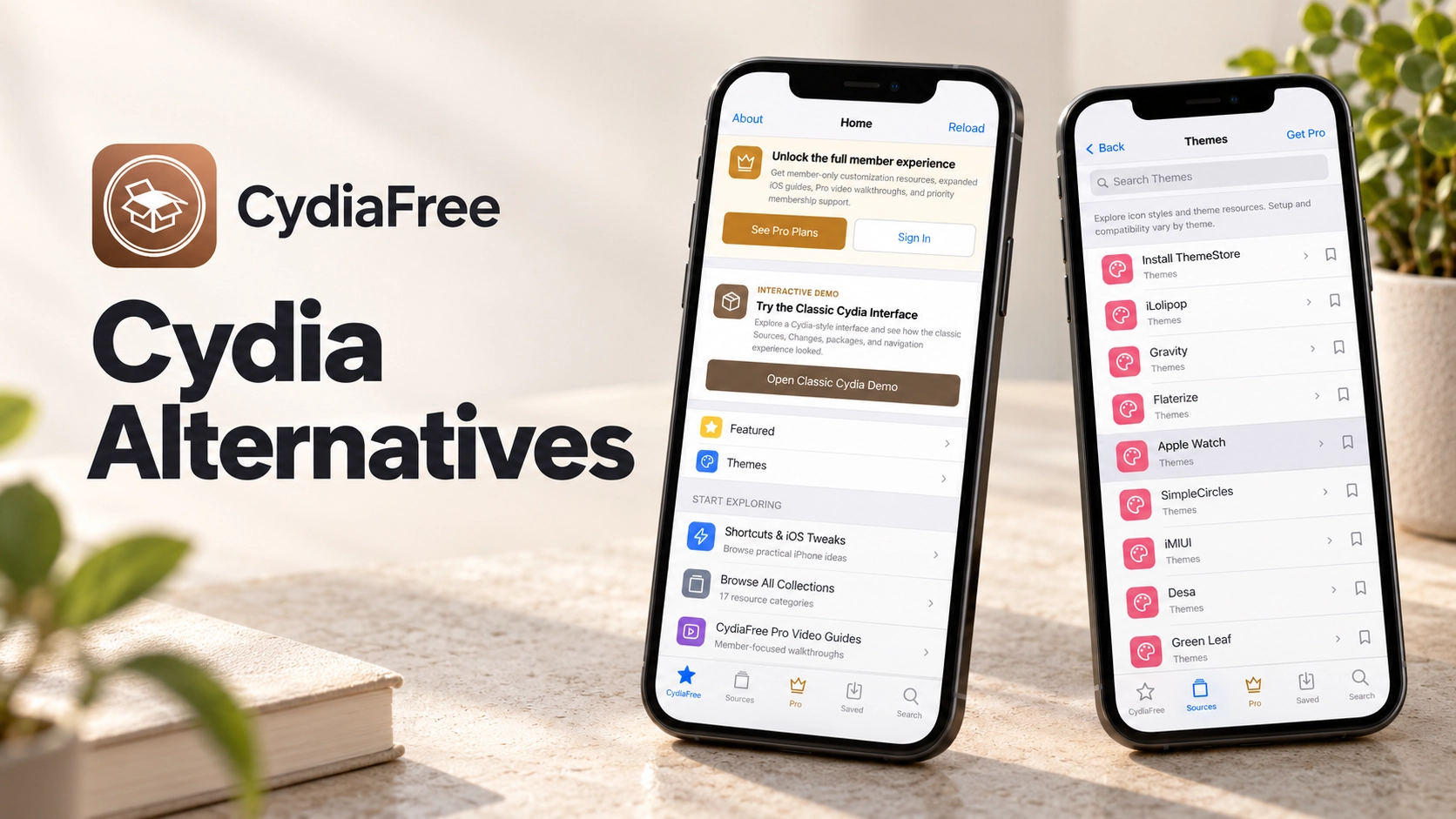
Other tools serve different needs. Sileo and Zebra manage packages on jailbroken devices. Sideloadly, AltStore Classic, and SideStore handle IPA sideloading. TrollStore works on specific firmware.
This guide helps you compare those options and decide where to begin.
Quick answer: Choose CydiaFree for browsing customization resources and guides without a desktop setup. Choose a supported IPA installer when you have an app to sideload. For traditional jailbreak packages, you need a compatible jailbreak and package manager.
Start exploring with CydiaFree
Browse themes, icon and wallpaper resources, Shortcuts, utilities, and iOS guides. Keep useful listings in a shortlist and explore membership when you find resources that interest you.
Cydia alternatives at a glance
The options below cover different jobs. Match the tool to your goal before checking installation instructions.
Scroll the table sideways to compare all columns.
| Option | Best suited to | Jailbreak needed? | Computer requirement | Ongoing requirements |
|---|---|---|---|---|
| CydiaFree Online App | Browsing customization resources, tools, and guides | No | No computer for browser access | Individual resources have their own requirements |
| Sileo | Managing jailbreak packages and repositories | Yes | Depends on the jailbreak | Compatible packages and an active jailbreak environment |
| Zebra | Managing packages on a supported jailbreak | Yes | Depends on the jailbreak | Compatible packages and an active jailbreak environment |
| Sideloadly | Installing compatible IPA apps from a desktop | No | Windows PC or Mac | Usually seven-day signing with a free account; auto-refresh available |
| AltStore Classic | Browsing and managing sideloaded apps | No | Standard setup uses AltServer on a computer | Signing refreshes and account limits apply |
| SideStore | Installing and refreshing apps on-device after setup | No | Computer for initial installation | Signing refreshes, Wi-Fi, and its specified VPN setup |
| TrollStore | Installing compatible IPAs on eligible firmware | No ongoing full jailbreak required; setup varies | Depends on the installation method | Exact firmware support and persistence requirements |
A working installer does not guarantee that every app or tweak will run. Check the requirements of the resource itself as well.
CydiaFree: Explore themes, tools, and guides in one place
CydiaFree is useful when you want to look through customization ideas before choosing a particular tool or installation method.
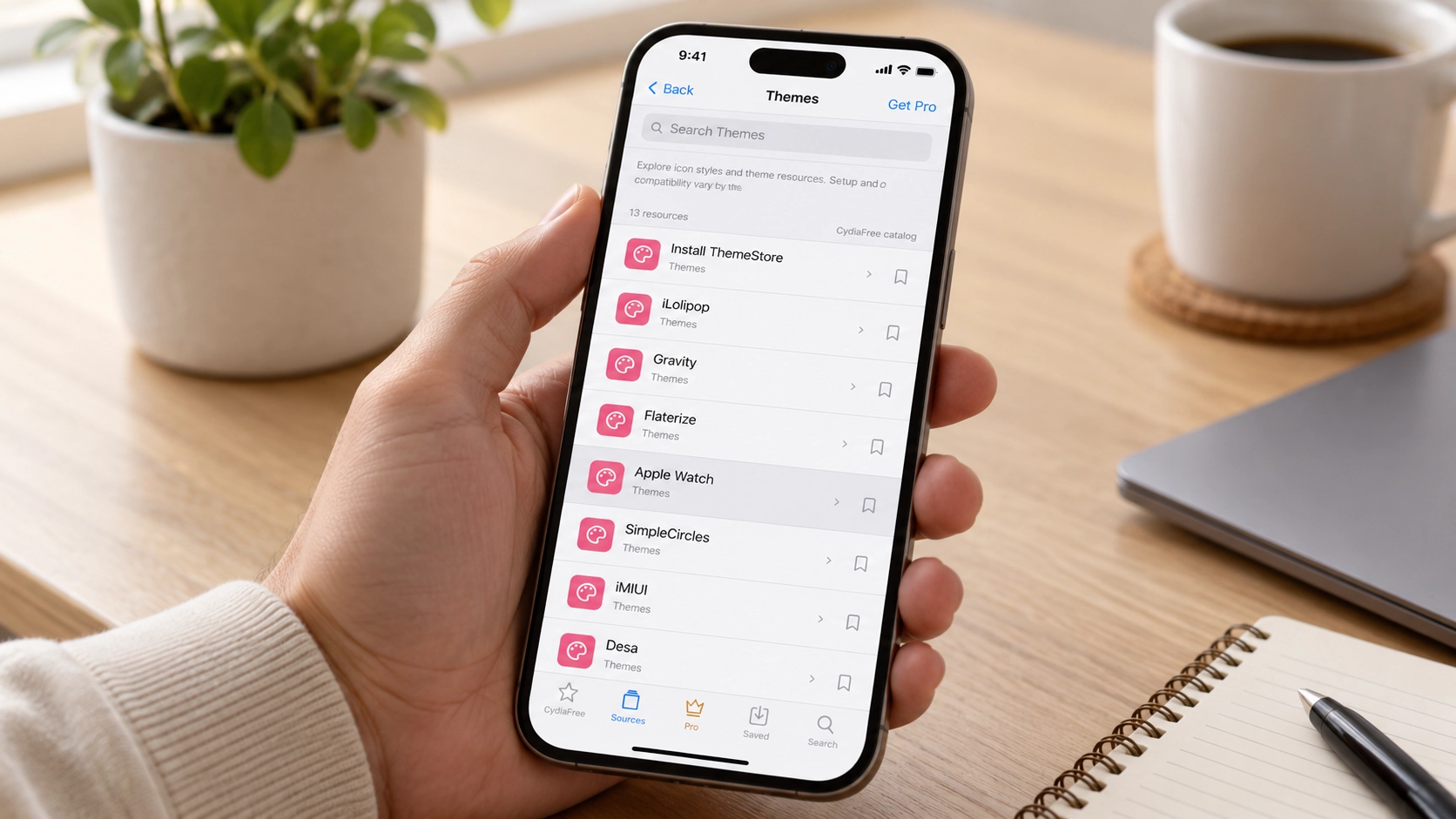
The free app includes collections for themes, design and wallpapers, Shortcuts and tweaks, everyday tools, and other resources. You can search the catalogue, open a listing's details, and save a shortlist in your current browser.
For example, you might begin with icon styles, compare wallpaper resources, then look for a guide that explains the setup involved. If you are searching for a practical utility instead, browse the tools collection and read the provider's requirements.
The catalogue helps you discover and compare resources. Installation and results depend on the selected item; the web app does not apply every listed customization automatically. Saved listings stay in that browser rather than syncing to a member account.
A good starting point if you want to:
- Explore iPhone customization without first setting up a desktop signing tool.
- Browse several resource categories from one interface.
- Read item details before choosing an installation method.
- Try the free catalogue before considering membership.
Free vs CydiaFree Pro: What changes?
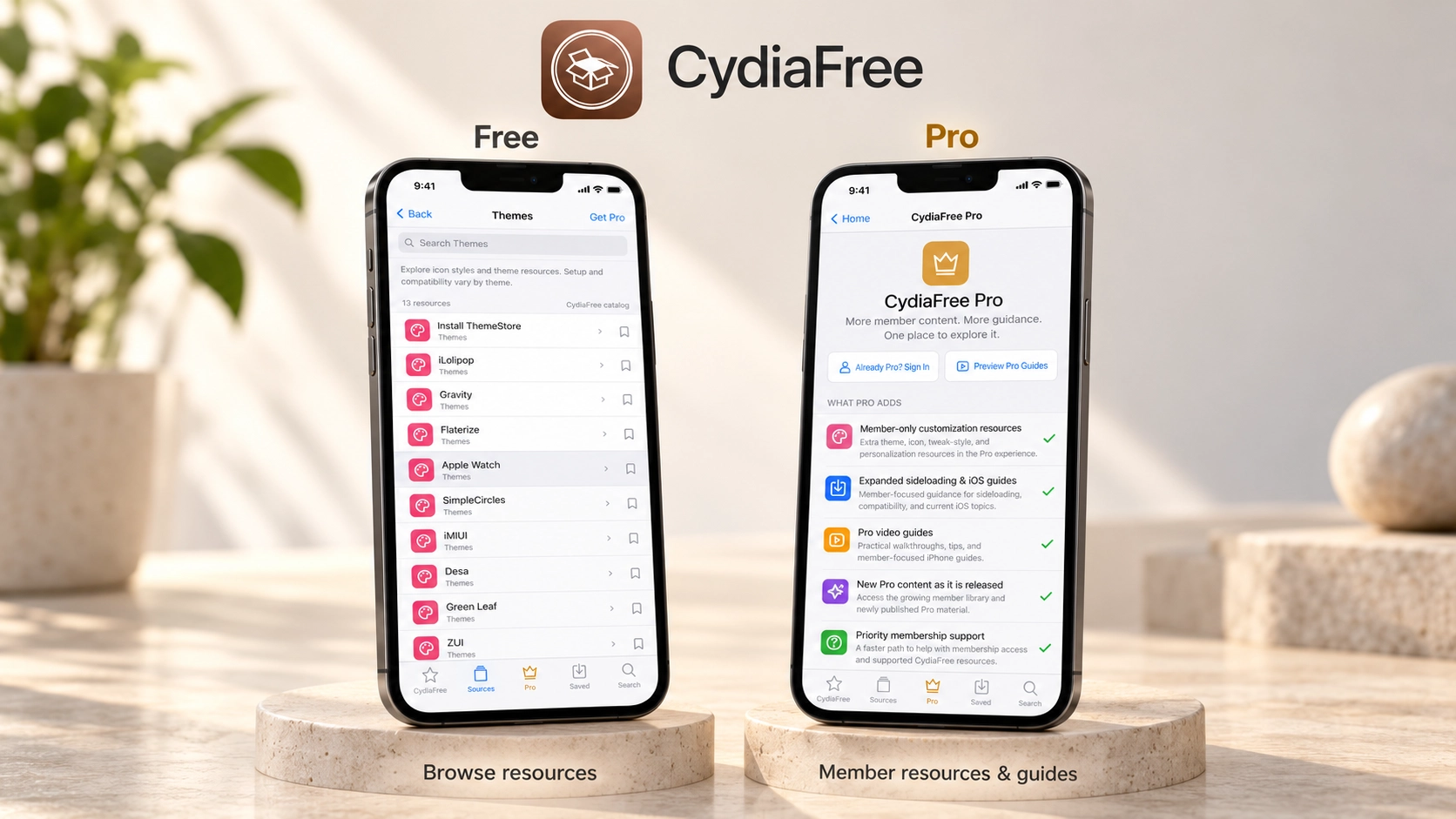
Free access lets you explore the public catalogue. CydiaFree Pro is a paid membership for additional member resources, guides, video walkthroughs, and membership support.
Scroll the table sideways to compare all columns.
| Feature | Free CydiaFree | CydiaFree Pro |
|---|---|---|
| Public catalogue, search, and listing details | Available | Available alongside membership |
| Saving listings in the current browser | Available | Same browser feature |
| Customization resources | Public catalogue listings | Additional member-only resources |
| iOS and sideloading guidance | Public guides | Expanded member-focused guides |
| Pro video walkthroughs | Previews where available | Member access according to the selected plan |
| Membership assistance | General contact options | Priority membership support |
| Payment | No paid membership needed to browse | Monthly subscription |
Review the selected plan for its exact inclusions. A catalogue listing does not mean that every third-party app, paid service, or software licence is included with membership.
What can make Pro useful?
Pro is worth considering when you want more than occasional browsing and the included resources match what you plan to use.
Member customization resources: Explore additional theme, icon, personalization, and tweak-style resources within the Pro experience.
Expanded guides: Get member-focused information about sideloading, compatibility, and iOS topics.
Video walkthroughs: Follow visual explanations when a written description alone is harder to use.
New member material: Access newly published Pro content as it becomes available.
Priority membership support: Get help with membership access and supported CydiaFree resources.
If you are joining mainly for one specific resource, confirm its current availability first. That makes it easier to choose a membership you will actually use.
View current CydiaFree Pro plans
Pricing, billing, and getting access
CydiaFree's listed memberships are monthly. Open the Pro plans screen to compare the current options, then review the selected product, currency, final total, billing interval, and renewal terms on Stripe before paying.
After successful payment, follow the checkout instructions to complete membership registration. Then sign in to the members' area to access the included content.
For registration, billing, or cancellation help, contact CydiaFree support. Removing the Home Screen icon does not cancel a paid subscription.
Sileo: For packages on a supported jailbreak
Sileo is an open-source APT package manager for jailbroken iOS devices. It lets you browse repositories and manage packages within a compatible environment.
Consider it when your chosen jailbreak includes or supports Sileo. Follow that jailbreak's instructions, then choose packages built for its firmware and architecture.
A package manager cannot make an incompatible tweak work. Check the developer's requirements before installing an older package on a newer environment.
Choose Sileo when: You already have a supported jailbreak and need repository and package management.
Reference: Sileo's official website.
Zebra: Another package manager for jailbroken devices
Zebra is an open-source package manager for jailbroken iOS devices. It offers another interface for browsing sources and managing packages.
Use it when your jailbreak supports it and the packages you need match that setup. Check the project's instructions before changing components that your jailbreak relies on.
Our Cydia tweaks and repositories guide explains the types of packages you may encounter.
Choose Zebra when: Your jailbreak supports Zebra and you prefer its package-management interface.
Reference: Zebra's official website.
Sideloadly: For installing an IPA from a computer
Sideloadly is a Windows and macOS tool for signing and installing compatible IPA apps without a jailbreak.
It suits users who have an IPA from its developer and want to install it from a desktop. Free-account installations generally use a seven-day signing period. Automatic refreshing can reduce manual work when the required computer and connection setup is available.
The IPA still needs to support your device and the capabilities available through that signing method.
Choose Sideloadly when: You have computer access and want to manage IPA installations directly.
Start with our Sideloadly guide. For detection, signing, installation, or refresh problems, see Sideloadly errors and fixes.
Reference: Sideloadly's official website.
AltStore Classic: For managing sideloaded apps
AltStore Classic combines app discovery with sideloaded-app management. Its standard setup uses AltServer on a computer, with separate instructions for Windows and macOS.
Its interface lets you review installed apps and refresh them before their signing period expires. With a free account, the usual restrictions include seven-day signing and three active sideloaded apps, including AltStore itself.
AltStore Classic also documents deactivation and reactivation to help manage available app slots.
Choose AltStore Classic when: You want app browsing and management alongside a supported AltServer workflow.
References: AltStore Classic app management, Windows setup, and macOS setup.
SideStore: For on-device refreshing after setup
SideStore is a community-driven fork of AltStore. It signs apps using your Apple Account and supports on-device installation and refreshing after the initial computer setup.
It can suit someone who has occasional computer access but wants to handle routine refreshing on the device. Development-signing periods and free-account limits still apply.
Its prerequisites include a compatible device, Wi-Fi, and the specified on-device VPN configuration. Follow the current installation instructions for those requirements.
Choose SideStore when: You can complete the initial computer setup and maintain its on-device signing workflow.
References: SideStore prerequisites and SideStore FAQ.
TrollStore: For specific firmware versions
TrollStore uses an AMFI/CoreTrust bug to install compatible IPA apps without the ordinary seven-day signing cycle.
The official project lists:
- iOS/iPadOS 14.0 beta 2 through 16.6.1.
- iOS/iPadOS 16.7 RC, specifically build 20H18.
- iOS/iPadOS 17.0.
The 16.7 release candidate is a specific exception, not support for the whole 16.7.x branch. This implementation does not list 17.0.1 or later as supported.
Firmware eligibility and installation availability are separate checks. Follow the method for your exact device and review the persistence-helper instructions.
Choose TrollStore when: You are already on eligible firmware and have a documented installation route. It does not provide every capability of a full jailbreak.
Reference: The official TrollStore project.
Which route fits your goal?
You want a new Home Screen look. Start by browsing CydiaFree's theme, icon, and wallpaper resources. Read the setup method before choosing a design. Some options use ordinary iOS features; others have additional requirements.
You have a particular IPA app to install. Compare the signing workflows above and confirm the app developer's requirements. A resource catalogue can help you discover an app, while installation requires a suitable method.
You want traditional jailbreak tweaks. Check your model and exact firmware against a supported jailbreak. Then use its package manager and compatible packages. Our Cydia jailbreak guide explains that process.
You want ongoing member resources and guidance. Explore the free CydiaFree experience first, then compare Pro inclusions with what you expect to use.
For release-specific background, see our iOS 26 guide or iOS 27 guide. Confirm tool compatibility against the developer's current documentation.
Check compatibility before installing
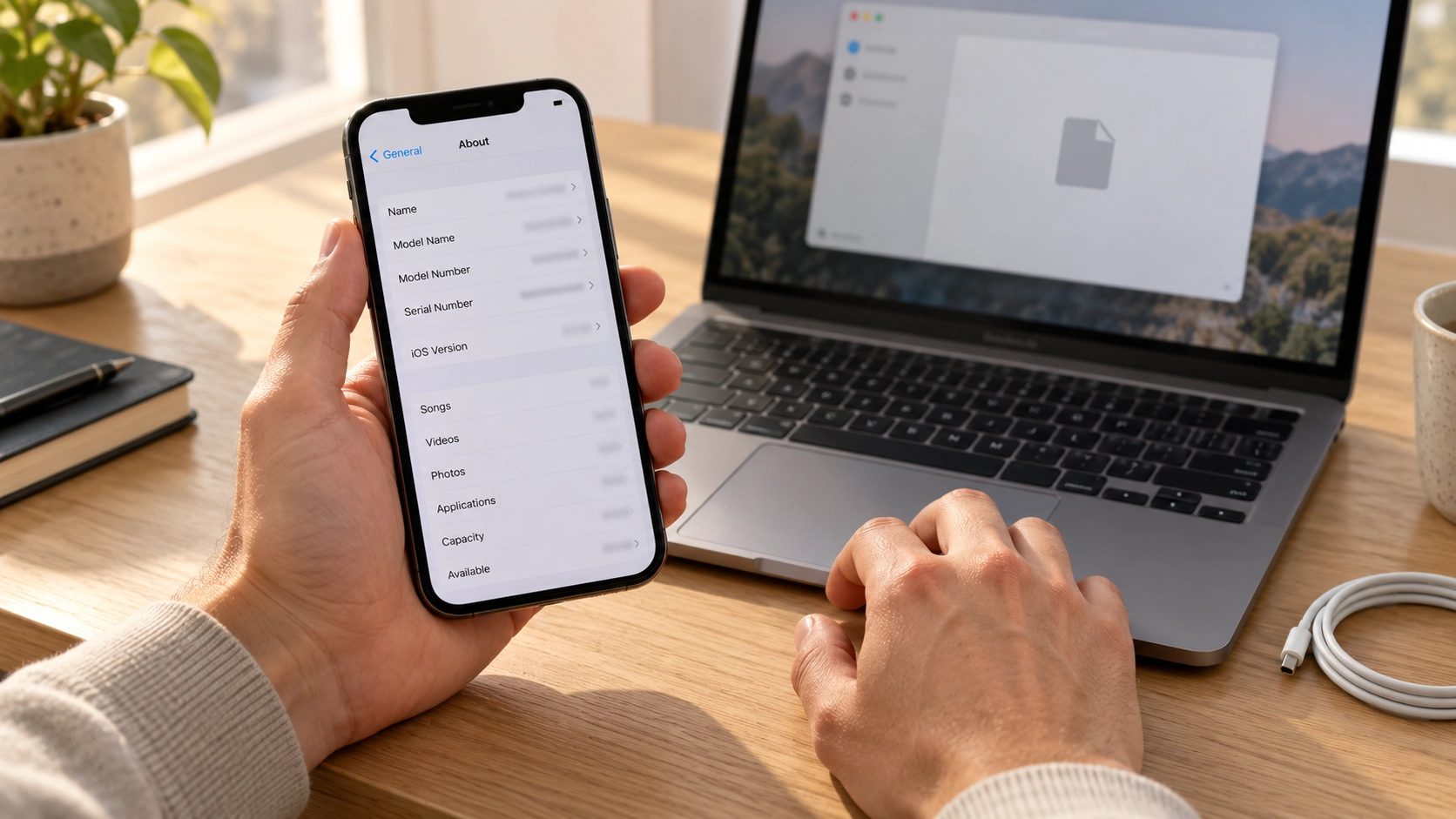
Open Settings → General → About and note your device model and complete software version. Check the build number or processor too if the method specifies one.
Next, confirm that the installer and the selected app or tweak both support that environment. Jailbreak packages commonly use DEB files, while sideloaded iOS apps use IPA files. Rootful and rootless packages also have different requirements, as explained in the Theos packaging documentation.
For computer-free claims, distinguish initial setup from everyday use. SideStore's on-device workflow, for example, follows an initial computer installation.
Read any permissions shown during setup. Apple's configuration-profile instructions explain profile installation, which is different from signing an IPA.
Frequently asked questions
Which Cydia alternative can I use without a jailbreak?
You can browse CydiaFree without jailbreaking. Sideloadly, AltStore Classic, and SideStore also provide non-jailbreak IPA installation workflows with their own requirements. Choose according to whether you want web resources, a native app, or system tweaks.
Is CydiaFree free to use?
The public catalogue and free setup do not require Pro membership. Paid Pro plans provide additional member resources and services. You can explore the free experience before deciding whether to subscribe.
Does CydiaFree Pro install original Cydia?
No. Pro is a resource and guidance membership. It does not provide a system jailbreak, install original Cydia, or make an unsupported device compatible with a jailbreak tool.
Is every listed app included with Pro?
No. Catalogue listings can point to third-party resources with separate accounts, licences, costs, or installation requirements. If a particular item is your main reason for joining, confirm its availability and access conditions before paying.
Do I need a computer to use CydiaFree?
No computer is needed for browser access to the CydiaFree web app. A separate resource you discover there may require a computer or another installation method.
What is the difference between AltStore Classic and PAL?
Classic is a sideloading platform. PAL is an alternative app marketplace for eligible regions and uses a different distribution process. Compare their current requirements in AltStore's official documentation. Apple explains regional eligibility in its alternative distribution guidance.
Why did my sideloaded app stop opening after seven days?
Its development signing period may have expired. Follow the signing tool's refresh instructions and preserve app data where possible. Browser access to CydiaFree itself does not use this IPA-signing cycle.
How do I manage or cancel Pro membership?
Use the options provided with your membership or contact CydiaFree support for help. Review the selected plan's billing terms before subscribing. Deleting the web-app icon is separate from managing the subscription.
Explore CydiaFree and choose your next step
Start with the free catalogue to browse customization ideas and useful resources. If you want additional member content, walkthroughs, and membership assistance, review the Pro plans and choose the option that fits your needs.
Set up CydiaFree for free View CydiaFree Pro plans
Documentation reviewed October 16, 2026. This guide compares published project requirements and CydiaFree's public app and membership descriptions. CydiaFree is independent of Apple, original Cydia, and the third-party projects discussed here.